Password Change Web Part
To change your password, enter your current password in Your old password and the new one in New password and New password again. Don’t forget to complete the captcha, if your administrator has enabled this setting. Then click Save. If the new passwords differ, you see it at once.

If Active Directory rejects the change, for example because the current password is wrong or the new password does not meet the domain password policy, the reason is shown above the form.
If e-mail confirmation is turned on, after saving you will see the message: “Please check your email and follow the confirmation link.”
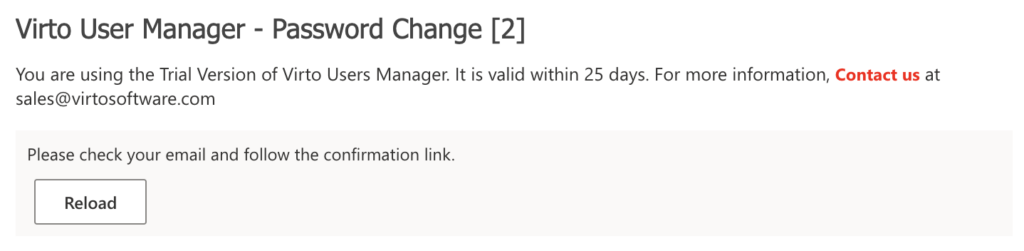
Check your email and look for the “Action confirmation” message. Click the link in it to confirm the password change. The link works once, for 24 hours, and only for the user who started the change.
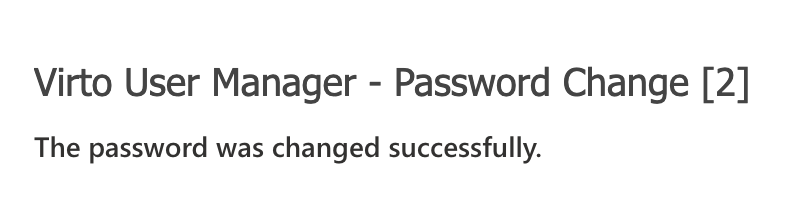
The link will open the Password Change web part with the message: “The password was changed successfully.”