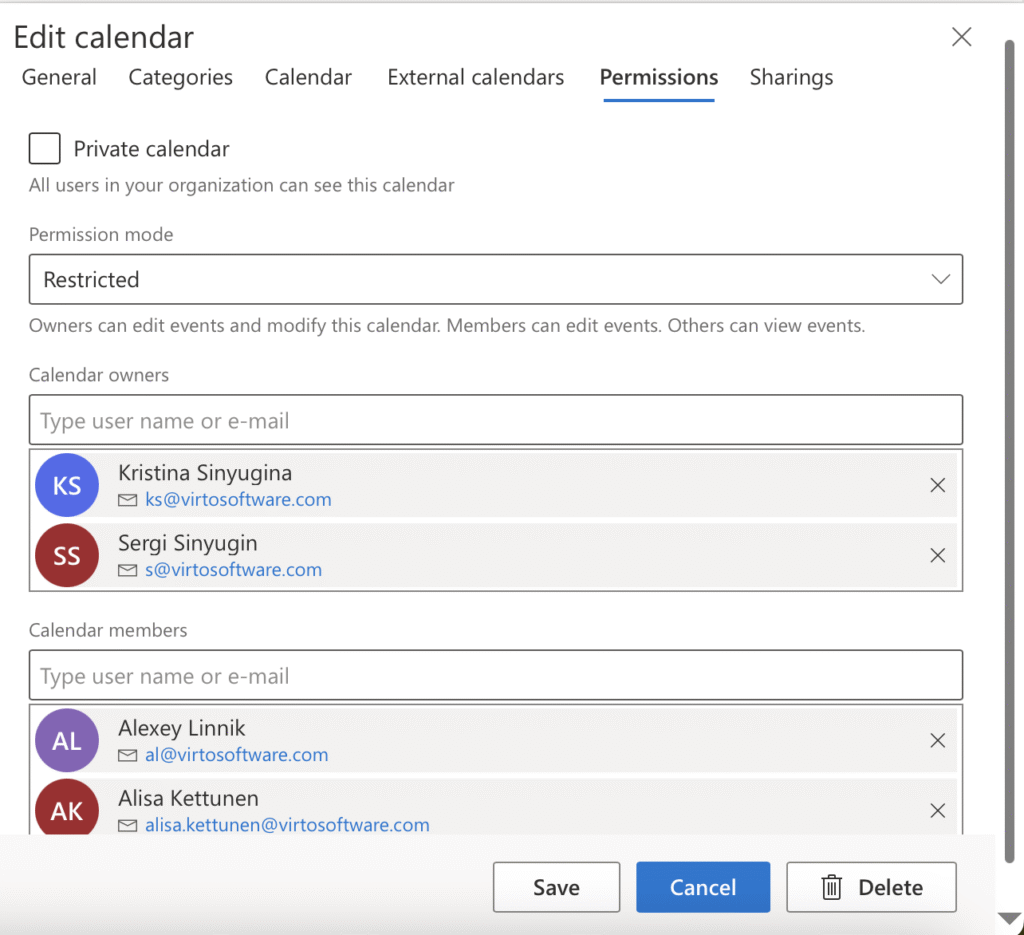
Permissions
By default, a new calendar is not private and uses the Default permission mode: everyone in your organization who uses the app can see it and works with it as an owner. Change these settings to limit access.
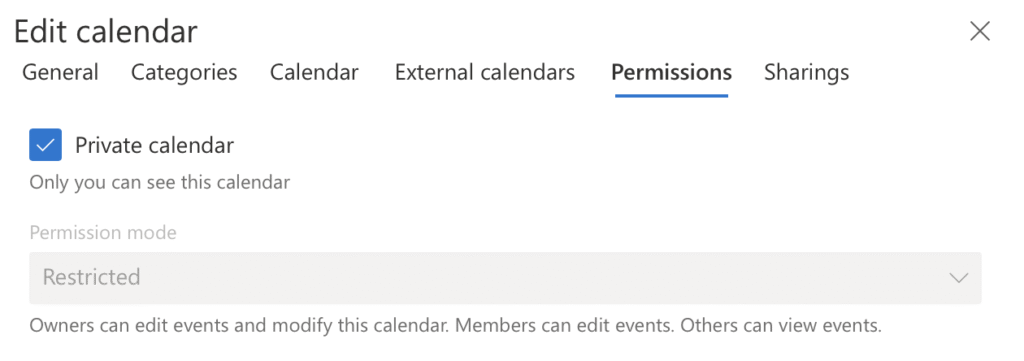
Private calendar checkbox
- Ticked: The calendar is marked private and is not listed for other users. Other settings are disabled.
- Unticked: All users in the organization can see the calendar.
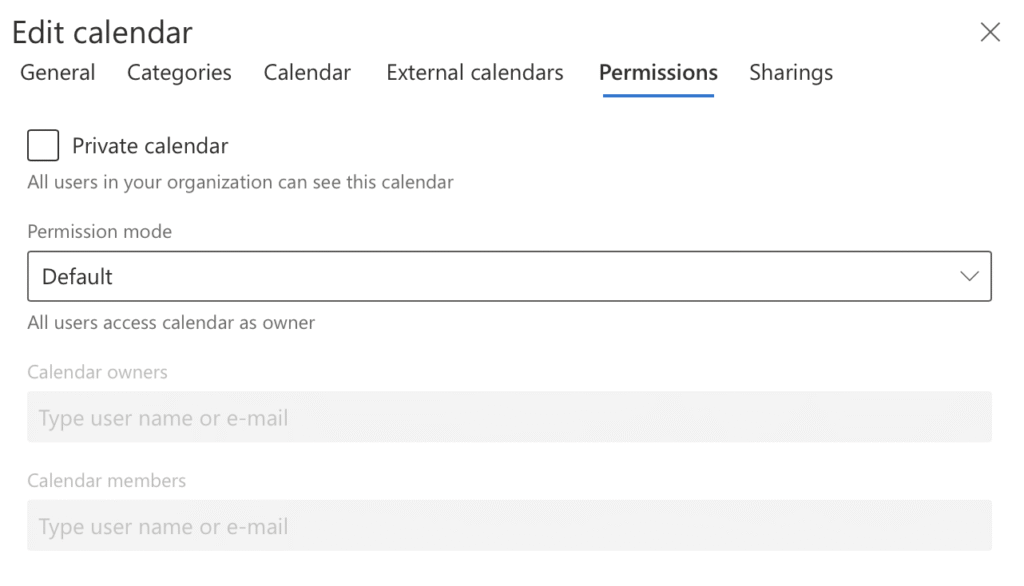
Permission Mode Options
- Default: All users access the calendar as owners.
- Restricted: Owners can edit events and modify this calendar; Members can edit events; Others can view events.
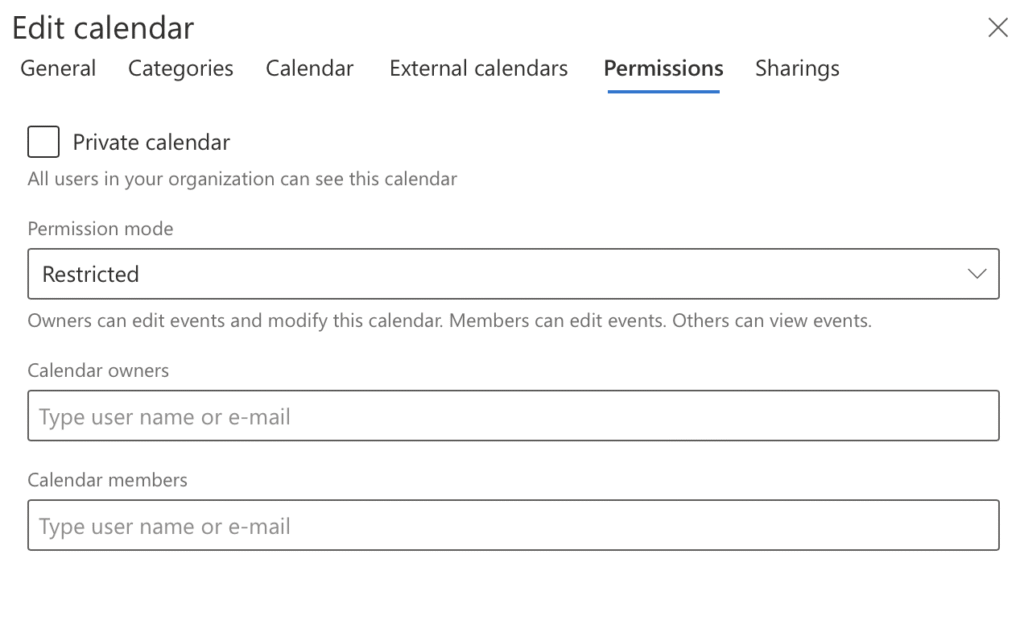
Assigning Users
Type user name or email to search and add to Calendar owners (edit events/modify calendar rights) or Calendar members (edit events rights).