# Calendar

Source: [https://docs.virtosoftware.com/docs/virto-shared-calendar/calendar-settings/calendar/](https://docs.virtosoftware.com/docs/virto-shared-calendar/calendar-settings/calendar/)


## 🗓️ Week View Settings

Accessible under the **Calendar** tab

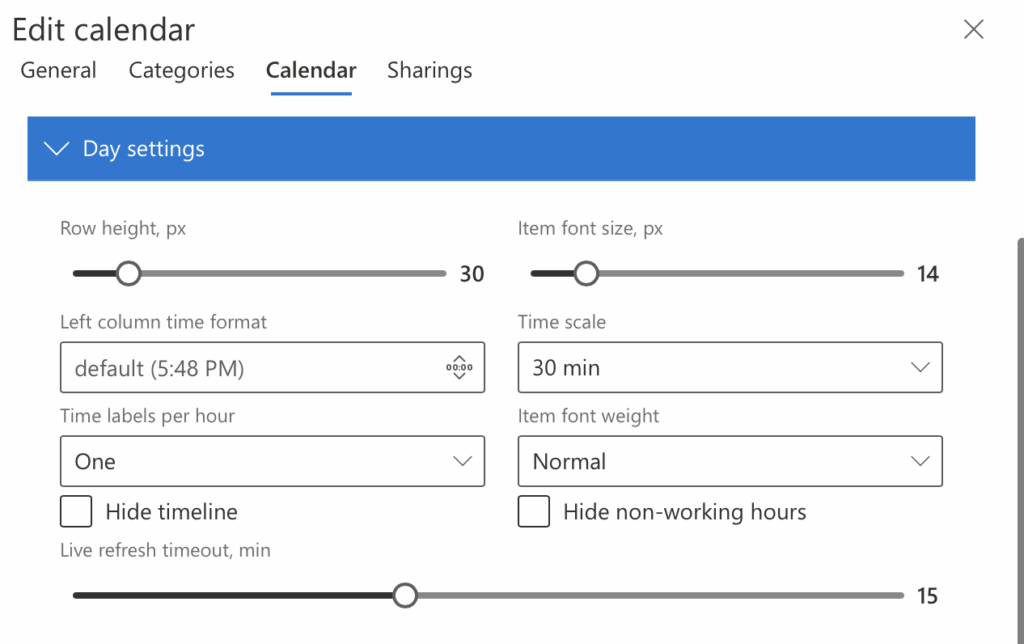
<figure class="wp-block-image size-large is-resized"><img alt="Week View settings in Virto Shared Calendar with week start day, working days, and working hours options" class="wp-image-10494" src="https://img-docs.virtosoftware.com/wp-content/uploads/2025/05/Screenshot-2025-06-18-at-17.48.49-1024x929.png" style="width:650px"/><figcaption class="wp-element-caption">Week settings</figcaption></figure>

<figure class="wp-block-table"><table class="has-fixed-layout"><thead><tr><th>Setting</th><th>Description</th></tr></thead><tbody><tr><td><strong>Week start day</strong></td><td>Select which day the calendar week begins (e.g., Sunday, Monday).</td></tr><tr><td><strong>Working days</strong></td><td>Check the boxes for days considered as working days (e.g., Monday to Thursday).</td></tr><tr><td><strong><strong>Working hours</strong></strong></td><td>Set your daily working hours using the slider (e.g., 9:00 to 18:00).</td></tr></tbody></table></figure>

## 🗓️ Day View Settings

Accessible under the **Calendar** tab → **Day settings**.

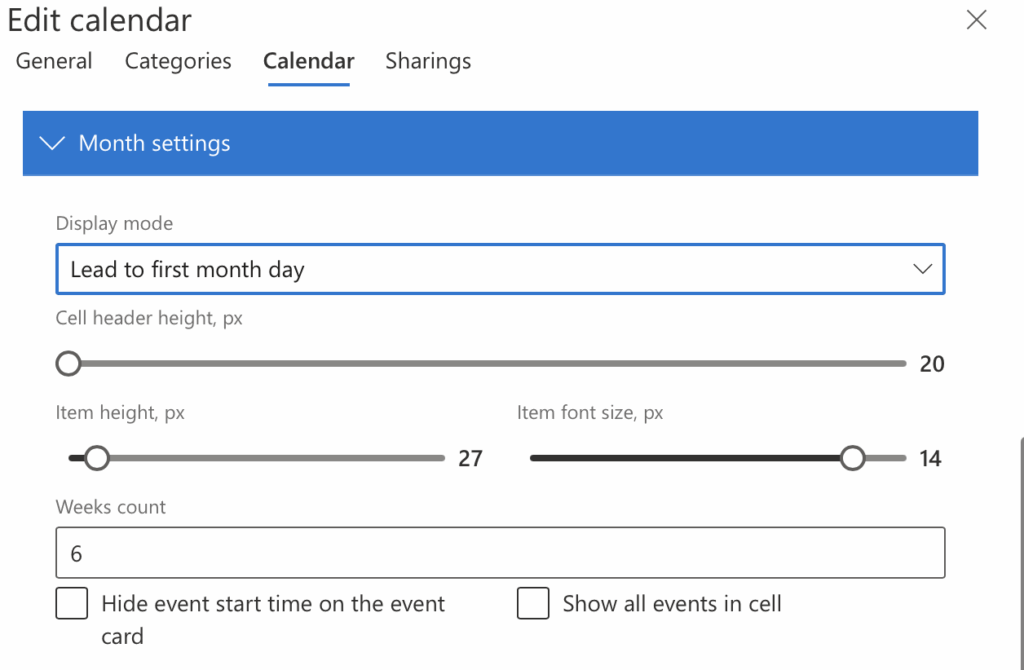
<figure class="wp-block-image size-large is-resized"><img alt="Day View settings in Virto Shared Calendar with row height, font size, time scale, and timeline options" class="wp-image-10496" src="https://img-docs.virtosoftware.com/wp-content/uploads/2025/05/Screenshot-2025-06-18-at-17.49.03-1024x644.png" style="width:650px"/><figcaption class="wp-element-caption">Day settings</figcaption></figure>

<figure class="wp-block-table"><table class="has-fixed-layout"><thead><tr><th><strong>Setting</strong></th><th><strong>Description</strong></th></tr></thead><tbody><tr><td><strong>Row Height (px)</strong></td><td>Adjust the height of each row in the day view for better visibility.</td></tr><tr><td><strong>Item Font Size (px)</strong></td><td>Change the font size of calendar items for improved readability.</td></tr><tr><td><strong>Left Column Time Format</strong></td><td>Choose the time format for the left column (12-hour or 24-hour).</td></tr><tr><td><strong>Time Scale</strong></td><td>Set the interval for time slots displayed (e.g., 30 minutes).</td></tr><tr><td><strong>Time Labels per Hour</strong></td><td>Select how many time labels appear per hour (e.g., one).</td></tr><tr><td><strong>Item Font Weight</strong></td><td>Set the boldness of calendar item text (e.g., Normal, Bold).</td></tr><tr><td><strong>Hide Timeline</strong></td><td>Option to hide the timeline from the calendar view.</td></tr><tr><td><strong>Hide Non-Working Hours</strong></td><td>Option to hide hours outside your defined working hours for a cleaner view.</td></tr><tr><td><strong>Live Refresh Timeout (min)</strong></td><td>Set how often the calendar automatically refreshes (in minutes).</td></tr></tbody></table></figure>

## 🗓️ Month View Settings

Accessible under the **Calendar** tab → **Month settings**.

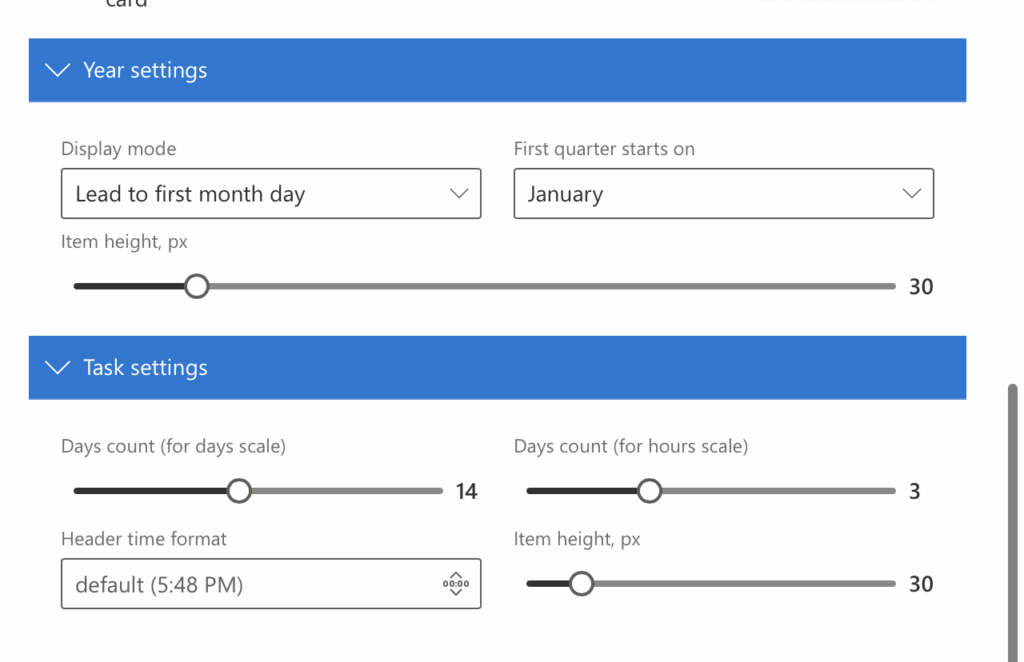
<figure class="wp-block-image size-large is-resized"><img alt="Month View settings in Virto Shared Calendar with display mode, cell header height, and item size options" class="wp-image-10497" src="https://img-docs.virtosoftware.com/wp-content/uploads/2025/05/Screenshot-2025-06-18-at-17.49.18-1024x670.png" style="width:650px"/><figcaption class="wp-element-caption">Month settings</figcaption></figure>

<figure class="wp-block-table"><table class="has-fixed-layout"><thead><tr><th>Setting</th><th>Description</th></tr></thead><tbody><tr><td><strong>Display Mode</strong></td><td>Choose how the calendar starts the month view. <br/>Option shown: <code>Lead to first month day</code> — ensures each month begins on the first visible day.</td></tr><tr><td><strong>Cell Header Height (px)</strong></td><td>Adjusts the vertical space allocated to the header (e.g., day numbers) in each cell. <br/><strong>Default</strong>: 20px</td></tr><tr><td><strong>Item Height (px)</strong></td><td>Defines how tall each calendar item appears in the day cell. <br/><strong>Default</strong>: 27px</td></tr><tr><td><strong>Item Font Size (px)</strong></td><td>Sets the font size for the text shown on events in the month view. <br/><strong>Default</strong>: 14px</td></tr><tr><td><strong>Weeks Count</strong></td><td>Specifies how many weeks are displayed in the monthly view. <br/><strong>Default</strong>: 6</td></tr><tr><td><strong>Hide Event Start Time</strong></td><td>When enabled, event cards will not display the start time of events.</td></tr><tr><td><strong>Show All Events in Cell Card</strong></td><td>Ensures all events on a particular day are shown without truncation or requiring a click to expand.</td></tr></tbody></table></figure>

## 📆 Year View Settings

Accessible under the **Calendar** tab → **Year settings**.

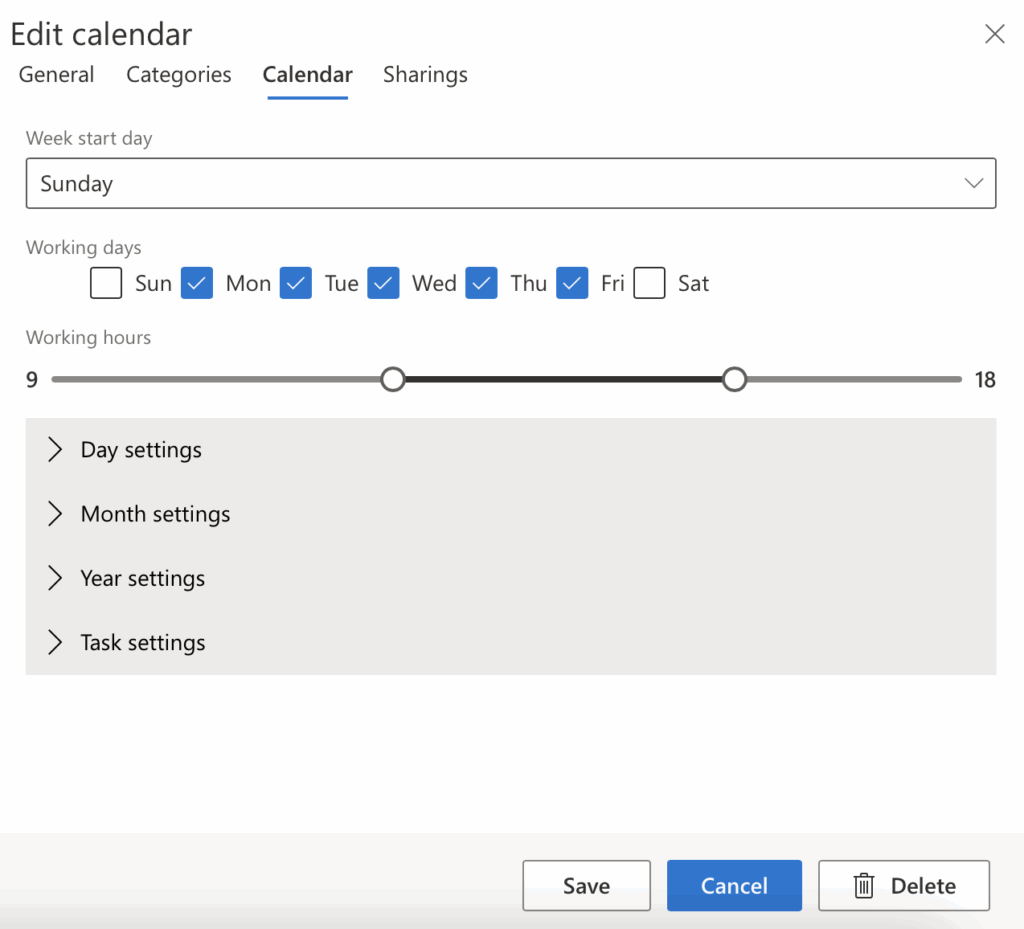
<figure class="wp-block-image size-large is-resized"><img alt="Year View settings in Virto Shared Calendar with display mode, first quarter start, and item height options" class="wp-image-10498" src="https://img-docs.virtosoftware.com/wp-content/uploads/2025/05/Screenshot-2025-06-18-at-17.49.44-1024x662.png" style="width:650px"/><figcaption class="wp-element-caption">Year settings</figcaption></figure>

<figure class="wp-block-table"><table class="has-fixed-layout"><thead><tr><th>Setting</th><th>Description</th></tr></thead><tbody><tr><td><strong>Display Mode</strong></td><td>Defines how the year view aligns months. <br/>Option shown: <code>Lead to first month day</code>.</td></tr><tr><td><strong>First Quarter Starts On</strong></td><td>Choose the start month of your fiscal or custom year. <br/><strong>Default</strong>: January</td></tr><tr><td><strong>Item Height (px)</strong></td><td>Controls the vertical size of items in the yearly view. <br/><strong>Default</strong>: 30px</td></tr></tbody></table></figure>

## ✅ Task View Settings

Accessible under the **Calendar** tab → **Task settings**.

<figure class="wp-block-image size-large is-resized"><img alt="Task View settings in Virto Shared Calendar with days count, header time format, and item height options" class="wp-image-10498" src="https://img-docs.virtosoftware.com/wp-content/uploads/2025/05/Screenshot-2025-06-18-at-17.49.44-1024x662.png" style="width:650px"/><figcaption class="wp-element-caption">Task settings</figcaption></figure>

<figure class="wp-block-table"><table class="has-fixed-layout"><thead><tr><th>Setting</th><th>Description</th></tr></thead><tbody><tr><td><strong>Days Count (Days Scale)</strong></td><td>Number of days displayed in the task view using the days timeline. <br/><strong>Default</strong>: 14</td></tr><tr><td><strong>Days Count (Hours Scale)</strong></td><td>Number of days shown in task view when using the hourly timeline. <br/><strong>Default</strong>: 3</td></tr><tr><td><strong>Header Time Format</strong></td><td>Set the format for time display in the header. <br/>Option shown: <code>default (5:48 PM)</code> — 12-hour format with AM/PM.</td></tr><tr><td><strong>Item Height (px)</strong></td><td>Adjusts the vertical size of task items. <br/><strong>Default</strong>: 30px</td></tr></tbody></table></figure>

## 📝 Notes:

- All values are adjustable using sliders or dropdown menus.
- Changes are immediately reflected in the calendar view upon saving.
- These settings help tailor the calendar for both personal and team use cases by prioritizing visibility, layout flexibility, and task organization.