
Calendar
🗓️ Week View Settings
Accessible under the Calendar tab
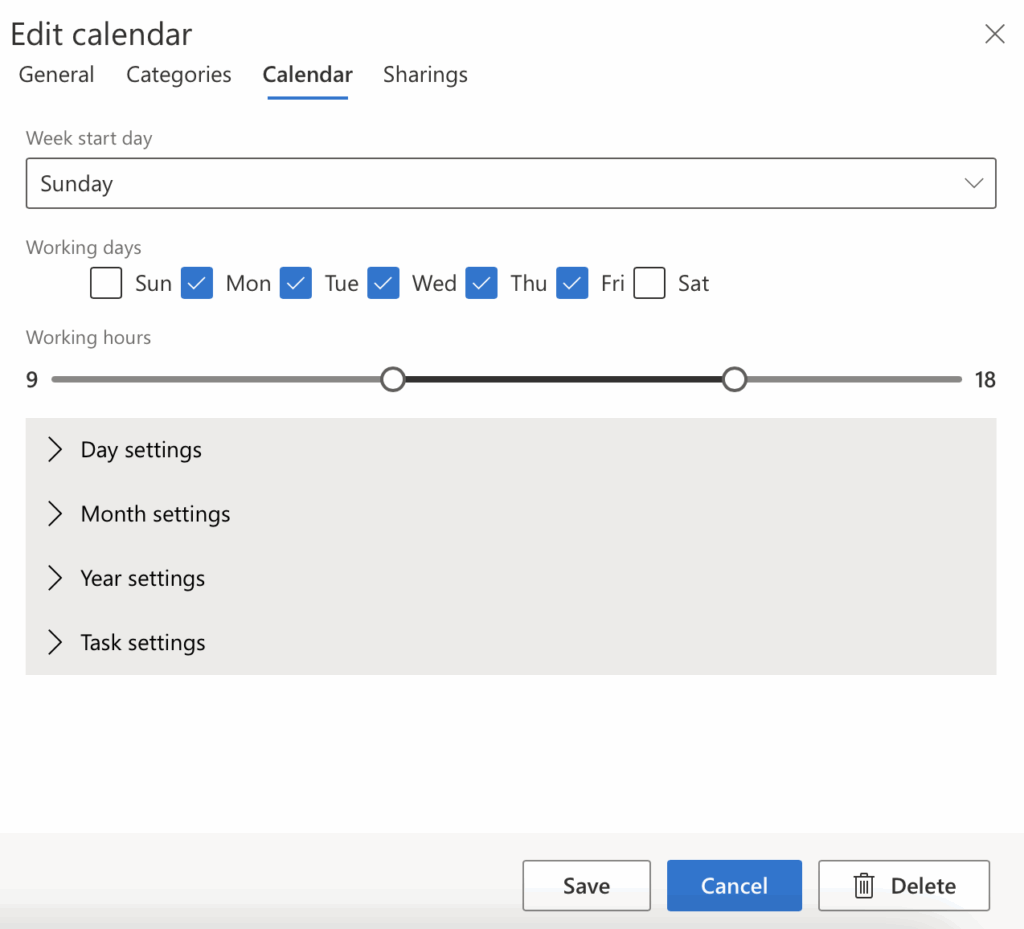
| Setting | Description |
|---|---|
| Timezone | The time zone in which events from External Calendars (iCal links) are shown. Until you choose one, the calendar uses (UTC) Coordinated Universal Time, so timed events from an external calendar appear hours off for a team in another time zone. All-day events are not shifted. |
| Week start day | Select which day the calendar week begins (e.g., Sunday, Monday). |
| Working days | Check the boxes for days considered as working days (e.g., Monday to Thursday). |
| Working hours | Set your daily working hours using the slider (e.g., 9:00 to 18:00). |
🗓️ Day View Settings
Accessible under the Calendar tab → Day settings.
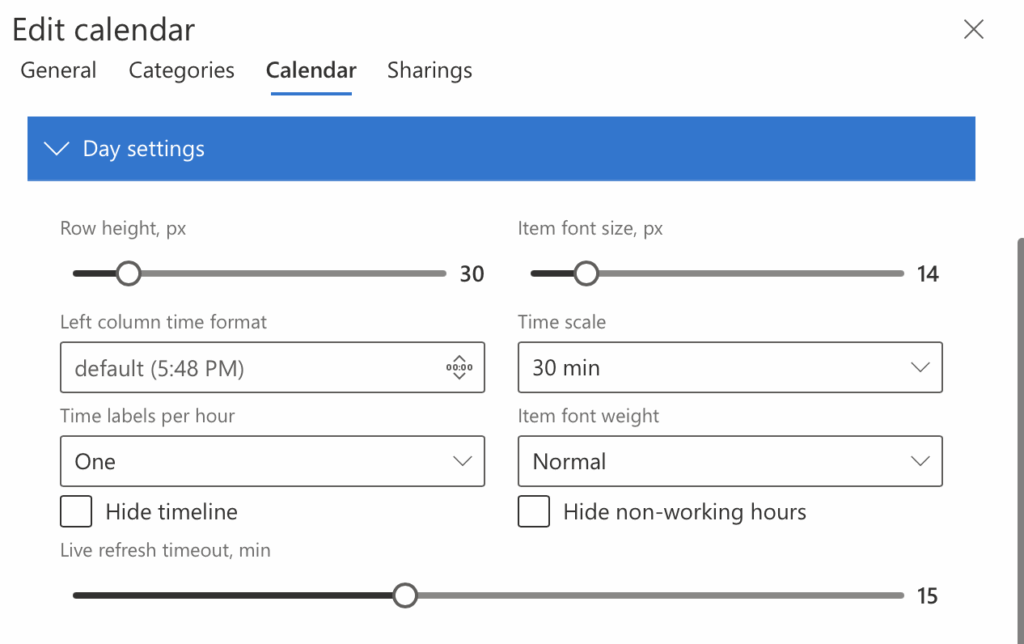
| Setting | Description |
|---|---|
| Row Height (px) | Adjust the height of each row in the day view for better visibility. |
| Item Font Size (px) | Change the font size of calendar items for improved readability. |
| Left Column Time Format | Choose the time format for the left column (12-hour or 24-hour). |
| Time Scale | Set the interval for time slots displayed (e.g., 30 minutes). |
| Time Labels per Hour | Select how many time labels appear per hour (e.g., one). |
| Item Font Weight | Set the boldness of calendar item text (e.g., Normal, Bold). |
| Hide Timeline | Option to hide the timeline from the calendar view. |
| Hide Non-Working Hours | Option to hide hours outside your defined working hours for a cleaner view. |
| Live Refresh Timeout (min) | Set how often the calendar automatically refreshes (in minutes). |
🗓️ Month View Settings
Accessible under the Calendar tab → Month settings.
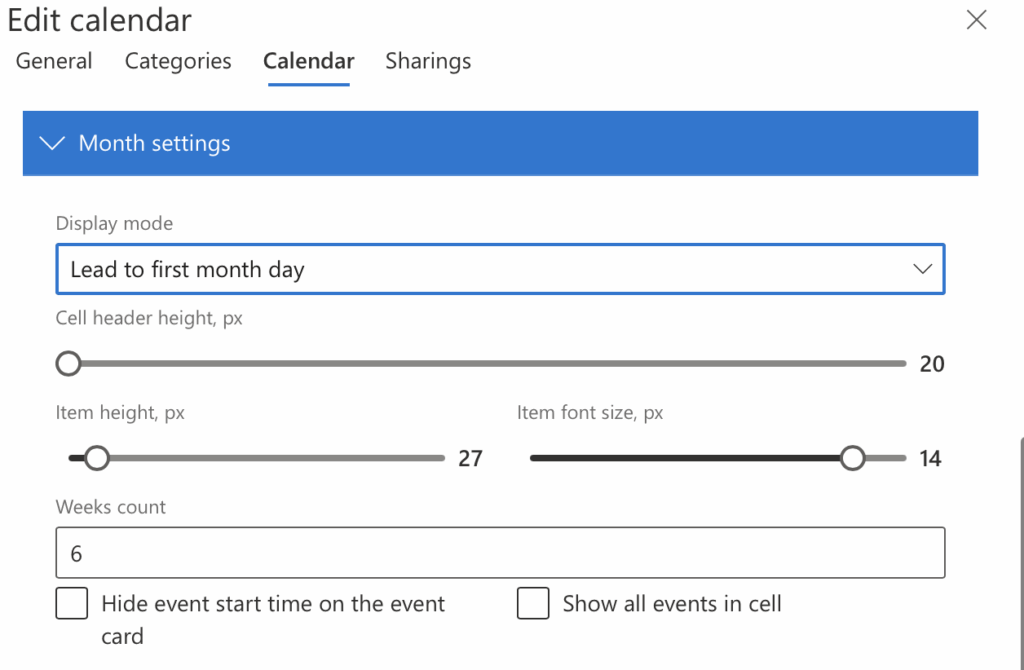
| Setting | Description |
|---|---|
| Display Mode | Choose how the calendar starts the month view. Option shown: Lead to first month day — ensures each month begins on the first visible day. |
| Cell Header Height (px) | Adjusts the vertical space allocated to the header (e.g., day numbers) in each cell. Default: 20px |
| Item Height (px) | Defines how tall each calendar item appears in the day cell. Default: 27px |
| Item Font Size (px) | Sets the font size for the text shown on events in the month view. Default: 14px |
| Weeks Count | Specifies how many weeks are displayed in the monthly view. Default: 6 |
| Hide Event Start Time | When enabled, event cards will not display the start time of events. |
| Show All Events in Cell Card | Ensures all events on a particular day are shown without truncation or requiring a click to expand. |
📆 Year View Settings
Accessible under the Calendar tab → Year settings.
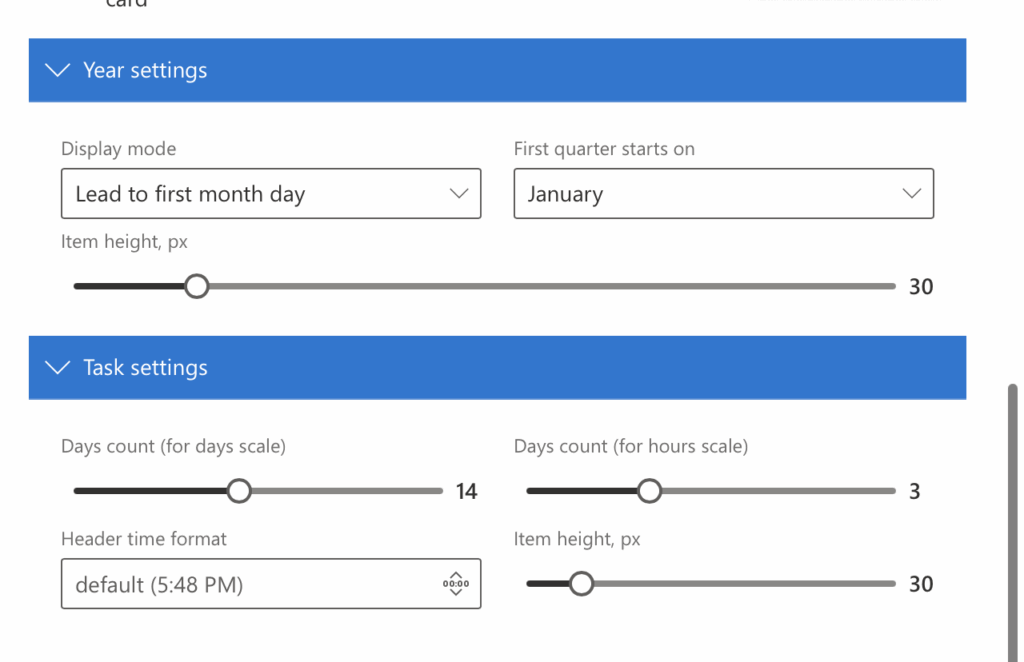
| Setting | Description |
|---|---|
| Display Mode | Defines how the year view aligns months. Option shown: Lead to first month day. |
| First Quarter Starts On | Choose the start month of your fiscal or custom year. Default: January |
| Item Height (px) | Controls the vertical size of items in the yearly view. Default: 30px |
✅ Task View Settings
Accessible under the Calendar tab → Task settings.
| Setting | Description |
|---|---|
| Days Count (Days Scale) | Number of days displayed in the task view using the days timeline. Default: 14 |
| Days Count (Hours Scale) | Number of days shown in task view when using the hourly timeline. Default: 3 |
| Header Time Format | Set the format for time display in the header. Option shown: default (5:48 PM) — 12-hour format with AM/PM. |
| Item Height (px) | Adjusts the vertical size of task items. Default: 30px |
📝 Notes:
- Events from an external calendar are hours off? Set Timezone on the Calendar tab to your team’s time zone.
- All values are adjustable using sliders or dropdown menus.
- Changes are immediately reflected in the calendar view upon saving.
- These settings help tailor the calendar for both personal and team use cases by prioritizing visibility, layout flexibility, and task organization.