
Using the app as a web part
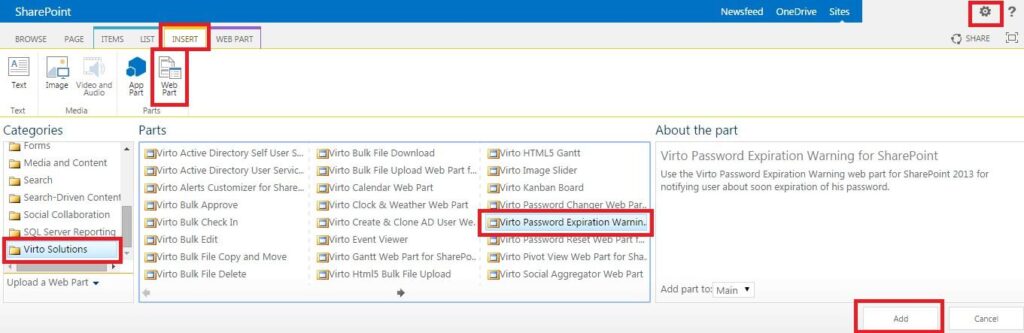
Go to SharePoint site where you want to add the web part and open “Edit - Edit page”. Select Virto SharePoint Password Expiration Web Part for SharePoint at the bottom of the list and add it to the page.
Then open web part settings to adjust the web part.
Then adjust the web part according to your needs:
- Enter the Url of the page where SharePoint will be able to change his password (for instance, a page with added Virto Password Change).
- You can define when user will be redirected to this site.
- Construct the message of notification with help of special tokens.
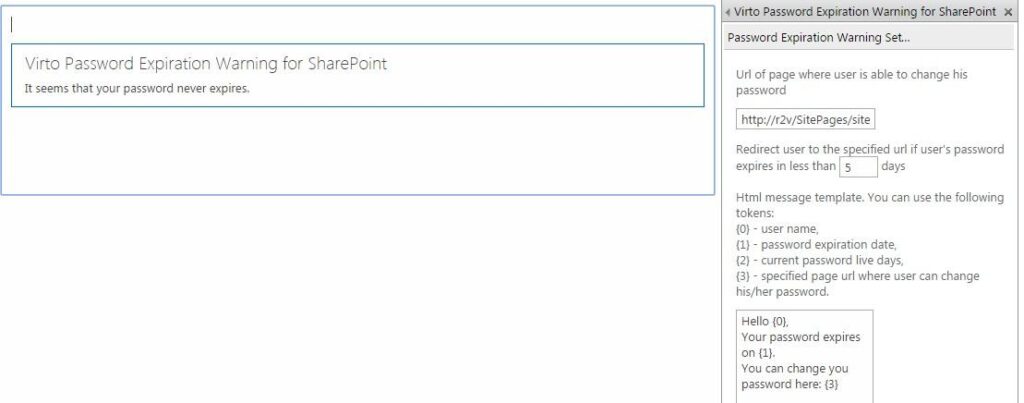
Save the settings and return to the web part page. Now users will see expiration alert (message) when they go to the Virto Password Expiration web part page.
