
Using SharePoint Password Expiration
Virto SharePoint Password Expiration can be used either as a solution or as a web part.
Note: only site administrator has access to component settings.
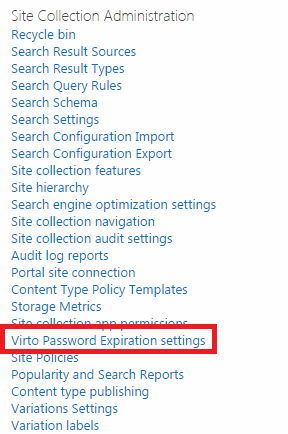
If you are going to use it as a solution, go to “Site Collection Administration – Virto Password Expiration Settings”.
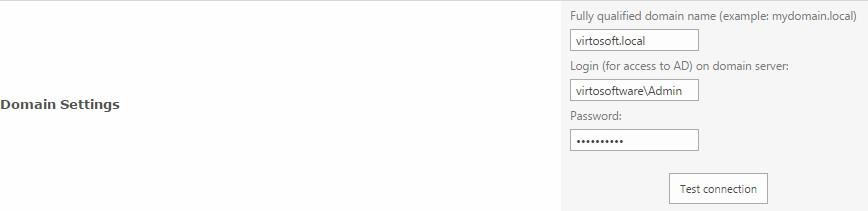
First of all you need to define domain settings.
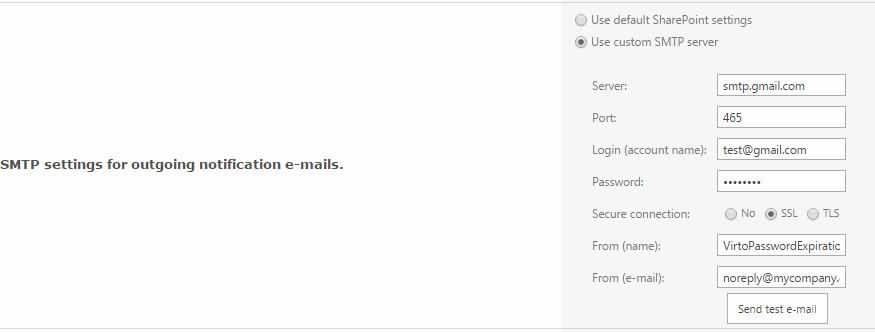
Then define SMTP settings for outgoing e-mail notifications. Use default or custom settings and check the settings with test e-mail.

If you define custom SMTP settings, define server, port, account login, password, the name of notification and the e-mail box it will be sent from.
Then you need to define schedule for notifications that will be sent to users. The notification is sent for three times and then sent every single day before the date of expiration. When it will be sent - you need to decide.
- Define the amount of days before the first notification;
- Define the amount of days before second notification;
- Define amount of days before the daily notification.
Then define the time when it is preferred to send notification (this is the time afterwhich the alerts will be sent).

You can add the list of AD users that will not receive the notifications (for instance, administrators or any other users).

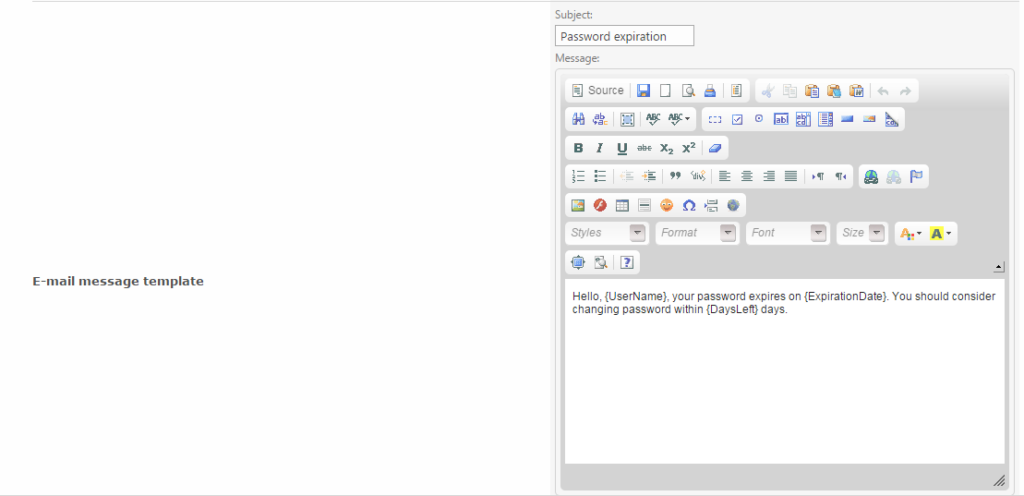
Enter the subject of e-mail notification displayed for recipients and use tags to construct the message text of the notification.
If you need to send copy of notification, enter the e-mail to send it to. If there is more than one e-mail, use commas to separate them.

Moreover you can enable client side notification, and every SharePoint user logged in to the site throughout AD will see the pop-up alert on the top of every page of SharePoint site.
Note: the option is available only for SharePoint 2012 users.
Click “Save” to save the settings.
Now when the password expiration date is coming, users will receive e-mail notifications.