
Recipients Settings
Switch to the Recipients tab. Here you can add a list of recipients who will receive this alert.
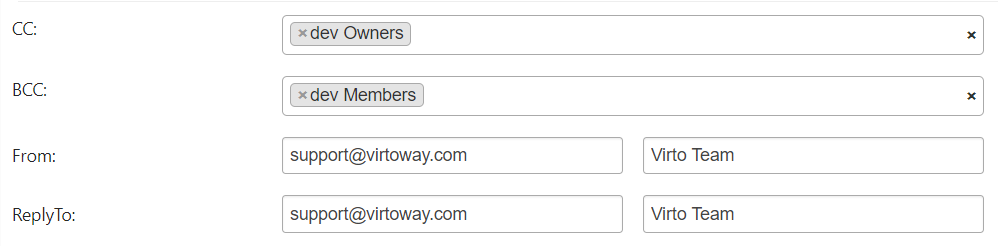
By default the alert is sent to the Alert author. To send alerts to other users you must be a site administrator or a member of a group selected in the web part settings. In To, CC and BCC you can add users and groups, list fields that contain users (Assigned to, Created by…) and external e-mail addresses; with Contact List you can add the contacts of a SharePoint contact list. Enter From and Reply To addresses if needed.

If you have the administrator’s permission, there are several options of recipients’ selection.
The first option is a Set of users or e-mail addresses. You can start typing at least 3 letters of a username or user group and get suggestions with an autocomplete option.
Also, you can select any current list’s fields, that contain users (Assigned to, Created by, Modified by, etc.). For example, you can select “Assigned to” option to send alerts to users assigned to work with a task. This option enables to set any amount of names or addresses.
The second option is Alert author. An alert email message will be sent to the user who has created this alert.
The third option is External email addresses. You can type an address in the field and press Enter to save it in recipients list.

You can assign multiple recipients in this field and select both recipients from a field in current list and recipients with emails. In this case, you will send them all this alert.
You can also send alerts to users from a SharePoint Contact list.
Click on “+” next to Contact List and fill out fields to select location, name, and view of list.
Next, you can add optionally field values for carbon copy and blind carbon copy. These fields have the same rules to add addresses as the field “To”.
Note: Please ensure the smtp server is properly adjusted and doesn’t have security restrictions, which are interrupting alert email delivery.