
Options
You can create your own custom schedule to send SharePoint Alerts, that means you can define conditions for sending and a period when alerts should be delivered. For instance, you can receive an alert if someone changes an item only within working hours (8 AM to 5 PM). You can also define days of week to send alerts.
There you can also define an External host path.
External host path allows users to replace the host part of the site link, item link, and item URL, that can be inserted in e-mail alert messages. This feature is usually used to provide SharePoint users logged in from external local domain with a public host path to the SharePoint web server. For example, if you enter http://wssportal.yourcompany.com/, outside users will receive alerts with links on item but site links in their e-mail alerts will be changed from http://YourInternalServerName/ to http://wssportal.yourcompany.com/… and will be available for those outside of the network.
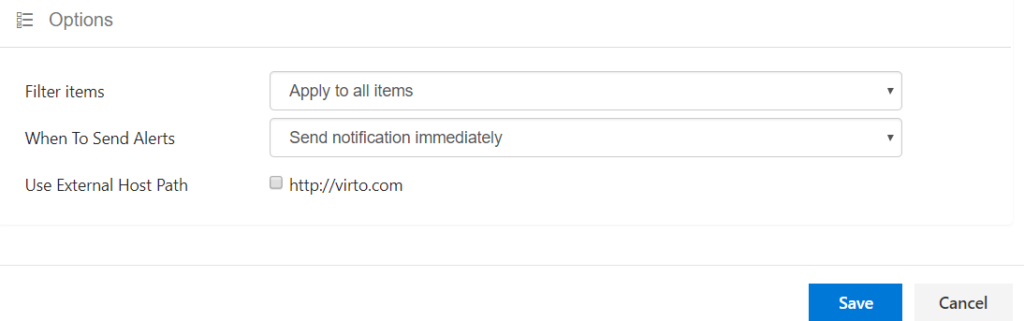
Choose a changes type, according to which the alert will be sent.
- Apply to all items;
- Apply to items in the following view;
- Use condition (s).

You can create a custom condition for more precise selection of items, that trigger the alert.
Click “Use condition” and define an item field, select a condition from list and type a value. You can add several conditions, using And and Or operators.

You can add new condition by clicking on “+” button or delete a condition using “X” button.
To track changes in a specified list field, select “Use condition”, choose the required field and use “was changed” or “not changed” condition.
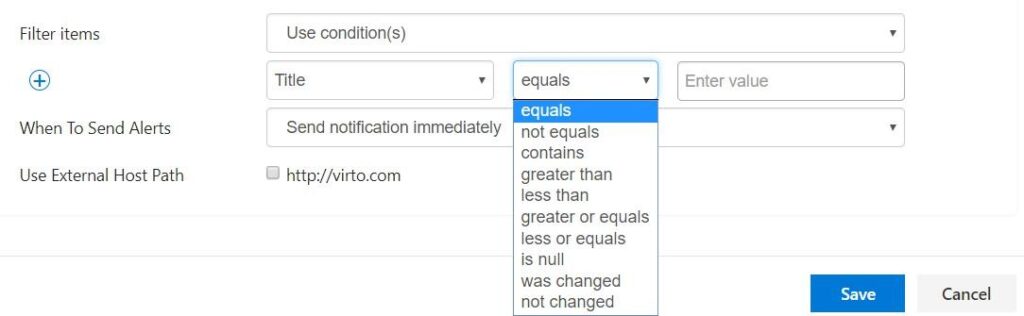
If created condition includes values from multiple choice field, use delimiter “|”.

Then you have to define the alert schedule.

You can send it immediately after any changes occurred or create a daily or weekly summary schedule.
If alert condition was triggered a few times per day, all alert emails are merged in a single daily (or weekly) summary alert.
If you select “Send a daily summary”, select required time from dropdown and tick boxes with days when you will to receive a summary.
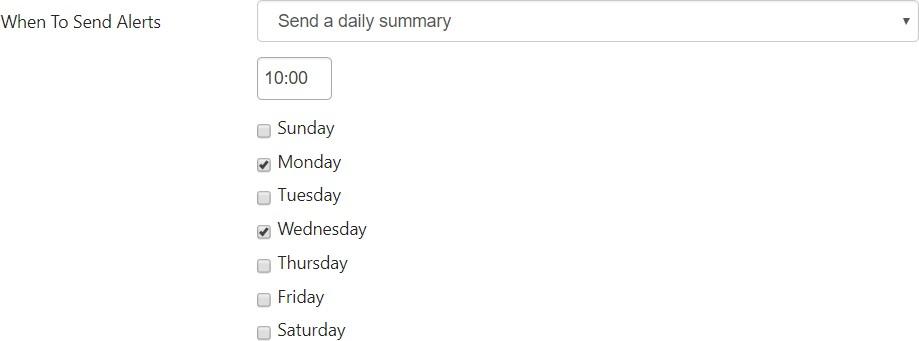
Alert will be sent according to settings at 10:00 only on Mondays and Wednesdays.
“Send a weekly summary” option allows you to send alert on a chosen day of week.

The next option allows you to send alert on the specific date based on the list’s date field value.
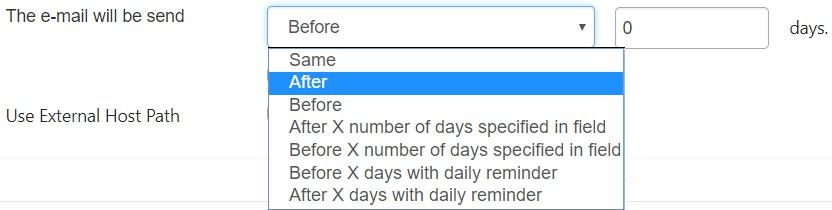
Same Date, After, and Before#
You can send alert on the same date as the date from a chosen field value. In this case, you need to set the exact time when the alert will be sent.
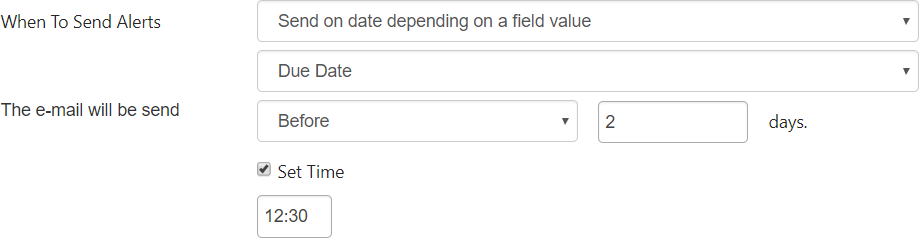
You can set time for “After” and “Before” options as well.
**Note:**If the format of a chosen field is not the Date and Time, but Date Only, you have to set time for alert sending. The same setting can be required if you send an alert for recurring events or for an all-day event.

If you do not define a time, in the example above it will be used time of field “Due Date”. If this field has
a date only and doesn’t contain time, email will be sent in midnight, using server time.
The count of days from additional field#
You can send an alert according to a day count from a value taken from a custom number type field. For example, you have in a list the Due Date field and a custom number type field.
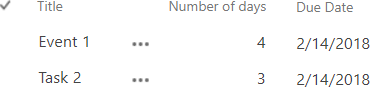
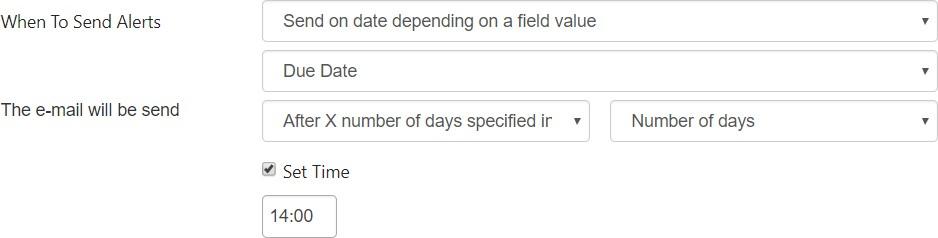
Select the option “Send on date depending on a field value” and choose Due Date field. Then you can assign a count of days from a custom field to send the alert.
For example, the value in the custom “Number of days” field is 3. Select the “After X number of days specified in field”. Then choose the custom list field with a number. In this example, we have value “3” in this custom field.
This means, you will receive this alert on the third day after the date in the “Due date” field.
Daily reminder#
You can customize the schedule to send reminders.
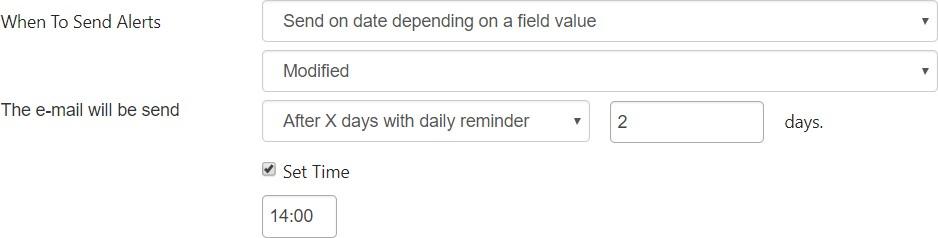
It is possible to send daily reminder before or after the specified number of days.
In the example below, a user will receive reminders at 14:00 in 2 days after and 1 day after the event was modified.
Press ”Save” to save the created alert.