
Adding New Form
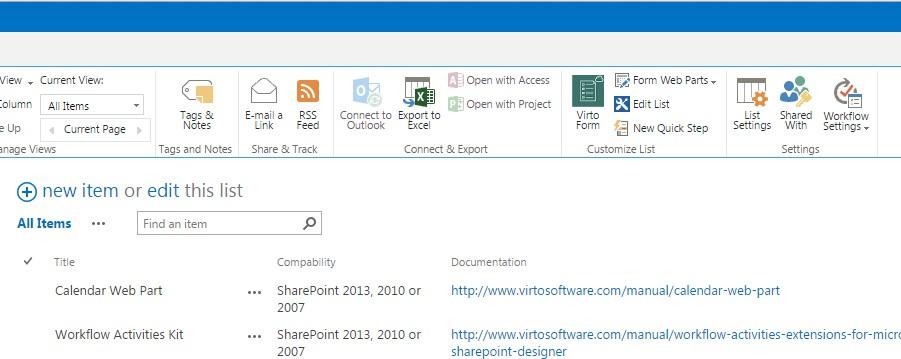
Go to a required list in your SharePoint and switch to “Library” or “List” tab. Click on Forms Designer icon on the ribbon. SharePoint Forms for SharePoint 2013 will be opened in the new window.
On Virto SharePoint Forms for SharePoint 2013 page use dropdown “Select form for edit” to create a new form.
3 form types are available:
- Default edit form
- Default new form
- Default display form
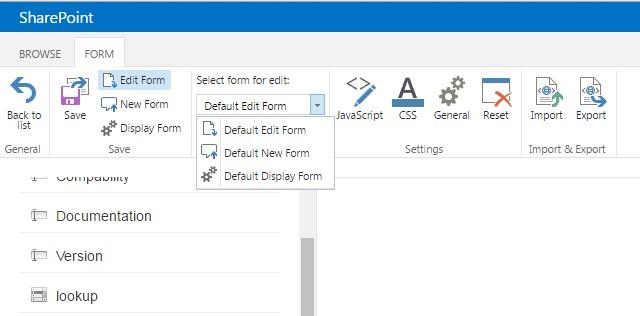
For example, you can open edit form to start creating a new form for list items editing. Actually, you can use any other default form view to start working with Virto SharePoint Forms for SharePoint 2013.
All existing fields of the corresponding list are displayed on the top. Basic controls for SharePoint form creating are located below.
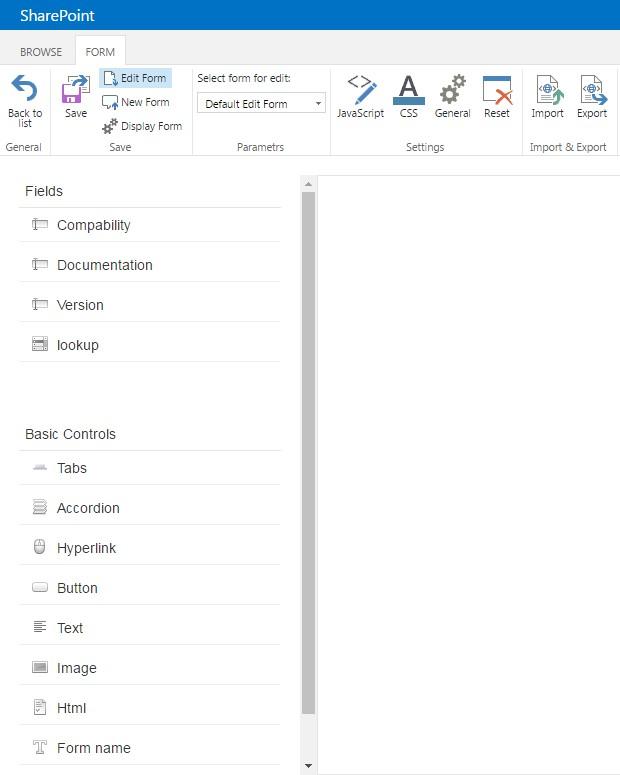
Now you can design a SharePoint form, using drag and drop function. New section will appear on the form.
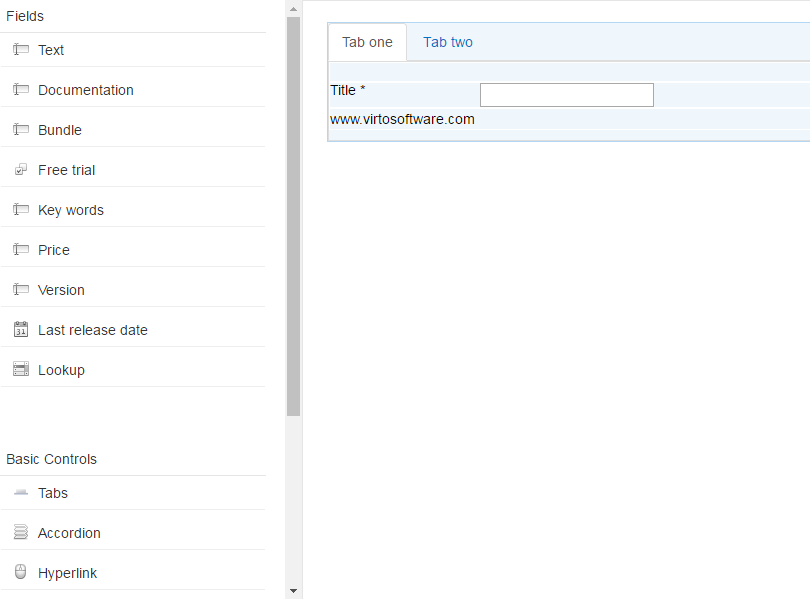
In the right part you can define additional parameters of chosen controls.
For example, you can type titles for both tabs and press “Save” button to save changes.
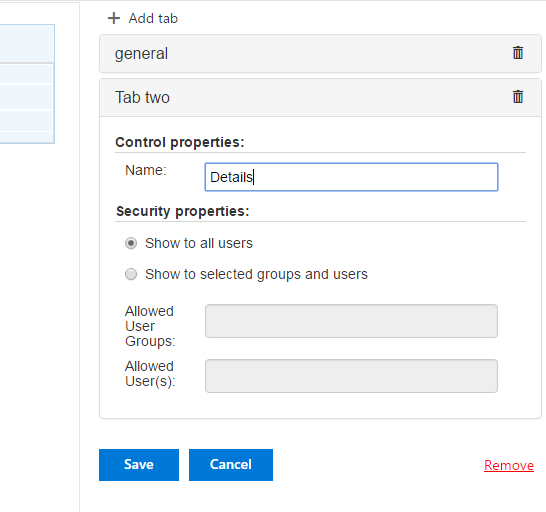
Also, you can change text color, style and size or add JavaScript link and CSS styles to chosen control to change its appearance.
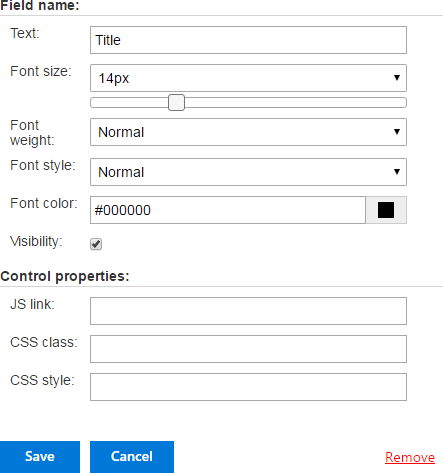
SharePoint Forms Designer allows you to define label text appearance of the list fields, using css class and custom styles. Also, you can hide label text by unchecking box “Visibility”.
You can add any amount of sections and fields from the current list and place them in several rows under each other or locate 3 elements in a single row.
You are able to locate in one row no more than 3 controls. But you can place only one control in a row inside Tabs and Accordions.

Remove chosen controls from your form by clicking “Remove” button or using drag and drop feature.
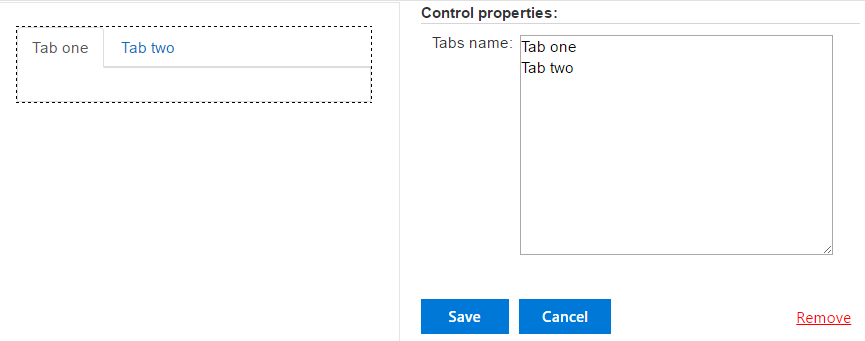
***Note:***You can`t put accordion form in any tab, as well as it is forbidden to place a tab in accordion form.
Note*: you can add any fields from the current list with no Read-only rights.*
Note*: it is impossible to add fields of “Attachment” type.*
Note*: fields from lists of “Document Library” types are not supported.*
Note*: “Recurrence” and “All day event” fields from lists of “Calendar” type are not supported.*