
Task information
In this section, you can customize task information and card appearance. Select a field to be displayed as the task title.
You can add any list field to display as the task title on the board (for example, project name).
You can choose up to three fields to be displayed simultaneously as the card title.

Select a field containing users assigned to a task (choose a user-type field for the “Users field”). You can enable the user notification feature.
If you check the “Send notification when a task has been assigned to a user” box, users will receive an email notification when they are assigned a task.

It is also possible to use a URL format for user avatars (SharePoint avatars or default pictures). This field will display who is responsible for a task.

You can add a date field on Kanban cards, such as “Due Date,” to highlight overdue tasks on your board. This will be displayed in the top right corner of a task.

Kanban Board allows you to use labels as color-coded tags on Kanban cards. Enable this option to categorize tasks on the board by color.
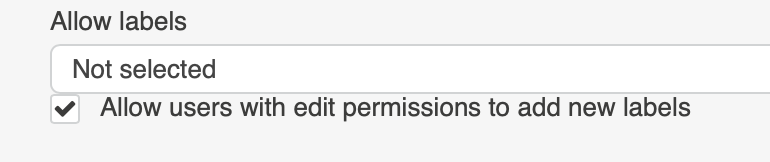
When you create a quick board, the system creates a task list with a default field used for labels. You can select another field for labels if needed.
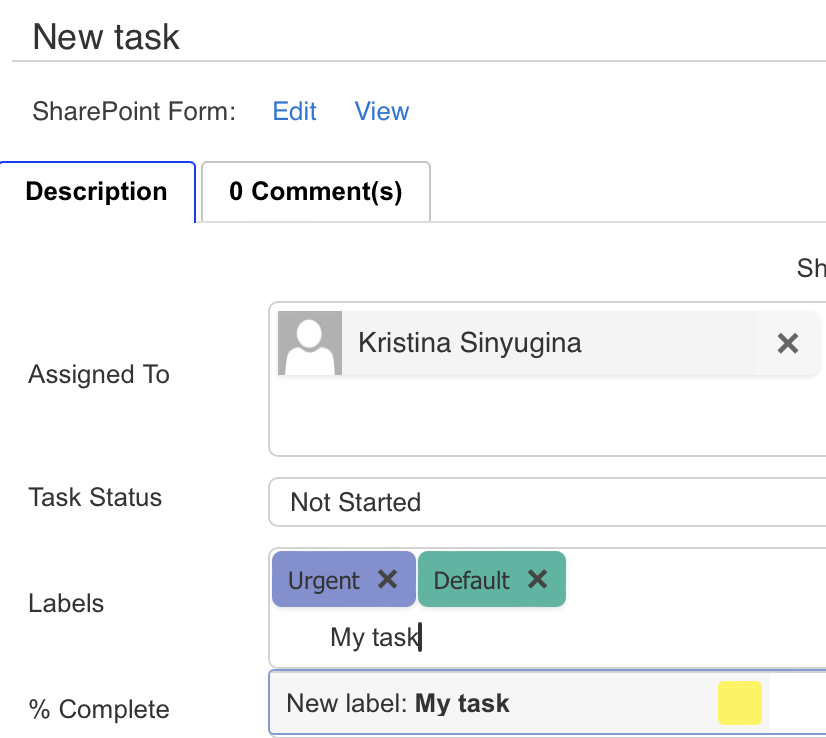
You can allow users with edit permissions (selected in “Kanban Settings –> Advanced Setup –> Permissions”) to create and edit labels (using values from a multichoice column). Labels are categories or tags used for classifying tasks. Use them for better visualization of task management, and apply labels in filters or swimlanes.
You must add a labels column to the Kanban card edit form to manage values and colors.
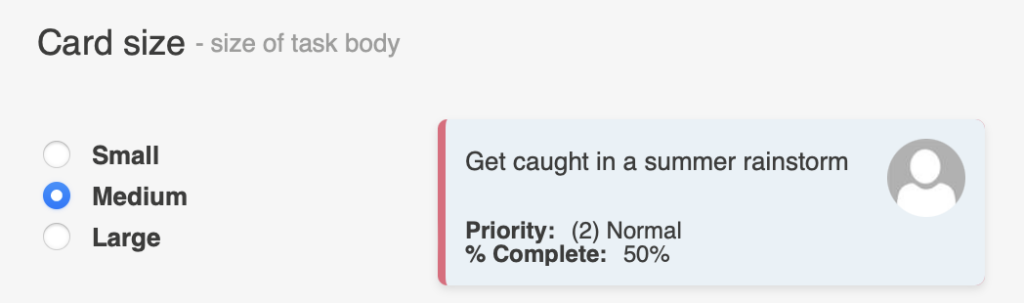
You can adjust the size of the tasks (small, medium, or large) to match your board’s design.
The next setting allows you to define the fields to be displayed in the body of a card. You can select the fields to display for each list. This allows you to decide which data is displayed on your board’s cards.
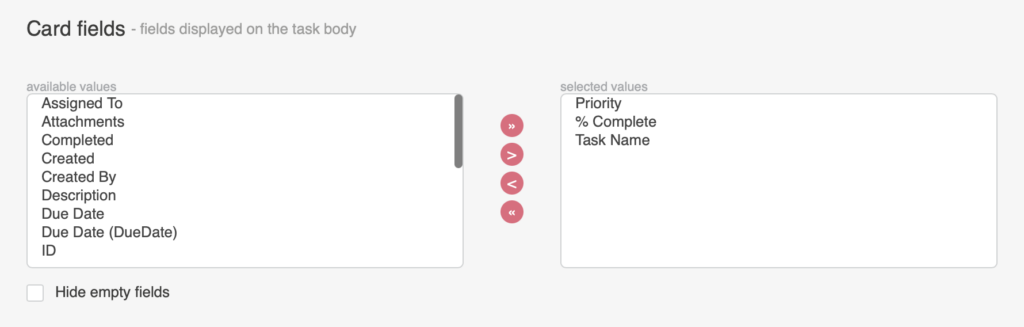
Rich-text and multiple-line fields cannot be displayed on the card, but they can be shown in the tooltip (short view).