
Virto Calendar App
Seeing an “Unexpected Error” when the app launches? Jump to Troubleshooting below.
About the Virto Calendar App
The Virto Calendar App helps to overlay Exchange Online calendars with other Microsoft 365 calendars in a single view:
- Use SharePoint lists as a data source to display any events or tasks on Virto Calendar App.
- Combine events from SharePoint lists, Outlook calendars, and meeting rooms.
- Add external calendars using an iCal link from Google or other popular calendar services.
- Effortlessly switch between timescales to view events grouped by day, week, month, year, and tasks.
- Color-code events and their categories to establish a well-structured and clear SharePoint calendar overlay.
- Incorporate the mini calendar for a compact overview of all calendar events.
Virto Calendar is a registered trademark and the unified brand name used for the entire Virto Calendar suite of applications. Due to Microsoft’s requirement for distinct naming of each product component, the names displayed in AppSource and the Teams Store may vary slightly.
Below are the official links to each product version:
Virto Calendar for M365 & SharePoint Online (Product ID: WA200005908)
Virto Calendar for Microsoft Teams (Product ID: WA200006993)
Virto Calendar SaaS Subscription
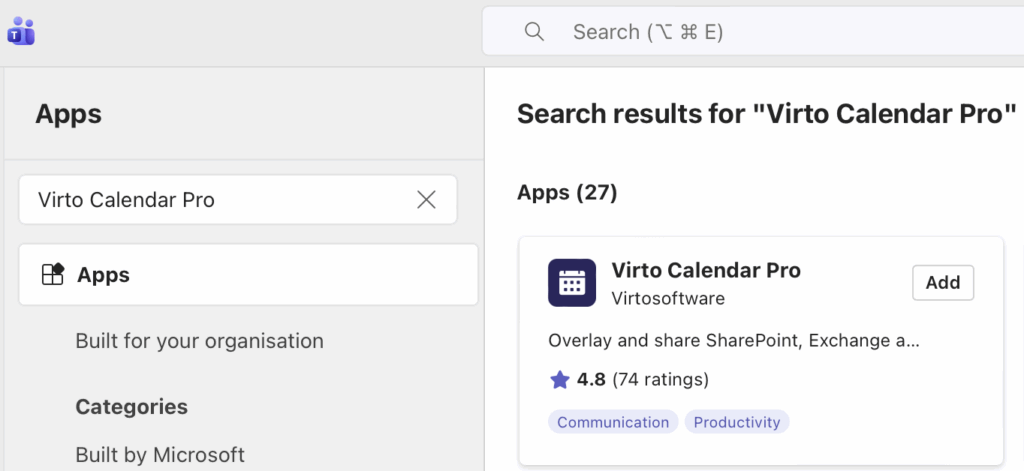
How to find Virto Calendar in Microsoft Teams: type “Virto Calendar Pro”.
Troubleshooting
🛑 Important! Third-Party Cookies Blocked Error 🛑
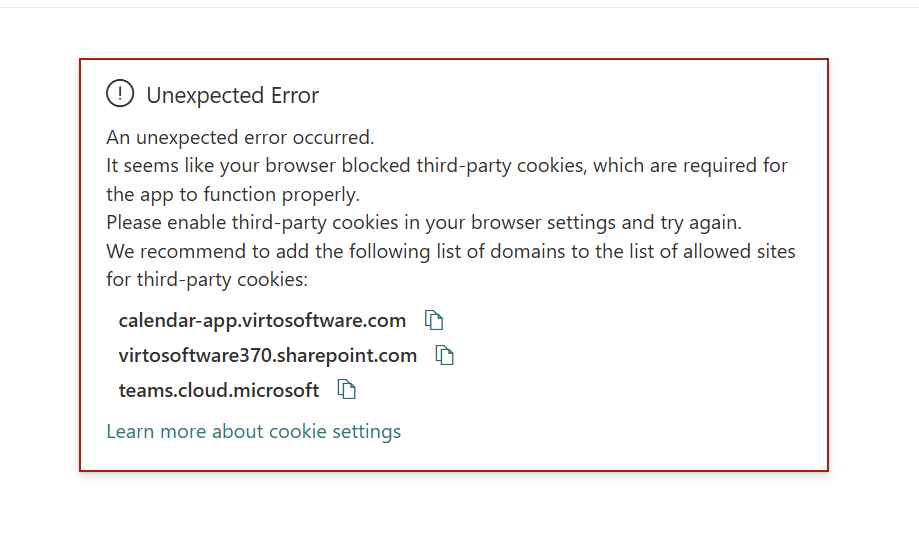
If you encounter the “Unexpected Error” shown below when launching Virto Calendar App, it means your browser is blocking third-party cookies, which the app requires to communicate securely between Microsoft Teams, SharePoint, and the Virto Calendar service.
This typically happens because modern browsers (Chrome, Edge, Firefox, Safari) restrict third-party cookies by default to enhance user privacy. Since Virto Calendar App is embedded inside Microsoft Teams or SharePoint as an iframe, it relies on cross-domain cookies to authenticate your session and load calendar data. When those cookies are blocked, the app cannot establish a connection to its backend and fails to load.
To resolve this issue, please follow the steps described in the error message:
Enable third-party cookies in your browser settings, and add the following domains to your browser’s list of allowed sites:
calendar-app.virtosoftware.com- [
yourtenant].sharepoint.com teams.cloud.microsoft
Once these domains are allowed, refresh the page (or restart Microsoft Teams) and the app should load normally. If you continue to see the error after enabling cookies, clear your browser cache and try again, or contact your IT administrator — some organizations enforce cookie restrictions via group policy that override individual browser settings.
⚠️ Important: Incognito / Private Browsing Mode
Virto Calendar App will not work in private browsing windows, because all major browsers block third-party cookies by default in this mode — even if you have allowed them in your regular browser settings. This applies to:
- Google Chrome — Incognito mode
- Microsoft Edge — InPrivate mode
- Mozilla Firefox — Private Browsing (Enhanced Tracking Protection runs in Strict mode by default)
- Safari — Private Browsing (blocks all cross-site tracking automatically)
If you’re seeing the “Unexpected Error” while using a private/incognito window, close the private window and reopen Virto Calendar App in a regular browser window. The cookie allowlist settings described above only apply to standard browsing sessions.
Note for Chrome and Edge users: Even if you manually enable “Allow third-party cookies in Incognito/InPrivate” in your browser settings, some embedded Microsoft Teams or SharePoint flows may still fail in private mode due to additional session restrictions. Using a regular window is the most reliable solution.
In this section
- Virto Calendar App overview
- Getting Started with Virto Calendar App
- Administrator's Guide to Installation and Configuration
- Installation & Configuration
- Administration & System Requirements
- Data Sources
- Settings
- Calendar views
- Working with Virto Calendar
- Alerts & Notifications
- Virto Mini Calendar
- Licensing & Security
- Contact information