Contact us
View as Markdown
Ask AI

Open this page in an AI assistant with a ready-made prompt.

Opens a third-party service and shares a pre-filled prompt containing this public page URL, its product documentation URL and /llms.txt. No VirtoSoftware account or tenant data is included. Provider terms and privacy policies apply. Verify answers against the linked documentation.

OpenAI terms · OpenAI privacy policy · Anthropic terms · Anthropic privacy policy

Updating and uninstalling

Update

To update the Virto Multiple File Operations web part, run the Setup file under the administrator account (right-click the Setup file and choose “Run as administrator“).

Then select the “Upgrade” checkbox and click “Next.”
Setup wizard with the Upgrade checkbox selected to update Virto Multiple File Operations

Wait for the product to upgrade. Click “Next“.
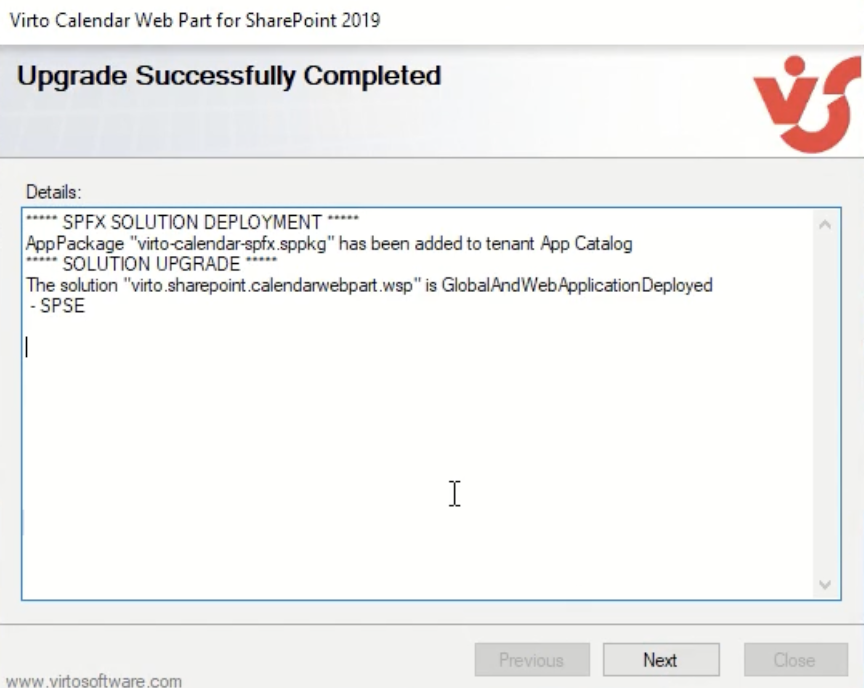
Setup wizard showing the upgrade in progress for Virto Multiple File Operations

Click “Close” to complete the upgrade.
Setup wizard final screen with the Close button after the upgrade completes

Update with PowerShell

You can also update the product with Deploy.ps1 from the new package: when the solution is already installed, the script updates it with the new package and reports the result. See Installing with PowerShell.

Uninstall

To uninstall the Virto Multiple File Operations web part, run the Setup file under the administrator account (right-click the Setup file and choose “Run as administrator“).

Then wait for the setup wizard to run all the necessary checks. Click “Next.”
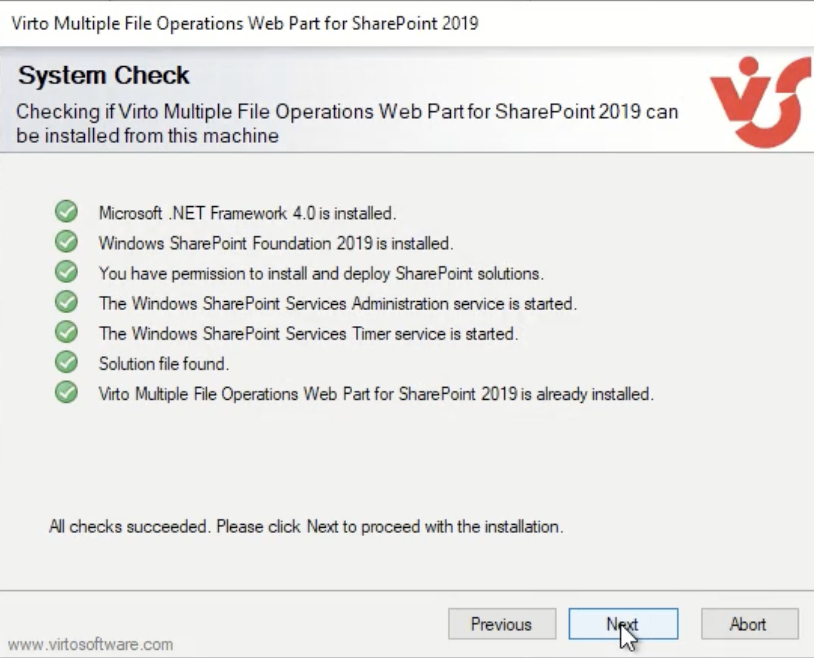
Setup wizard system check completed before uninstalling the Multiple File Operations web part

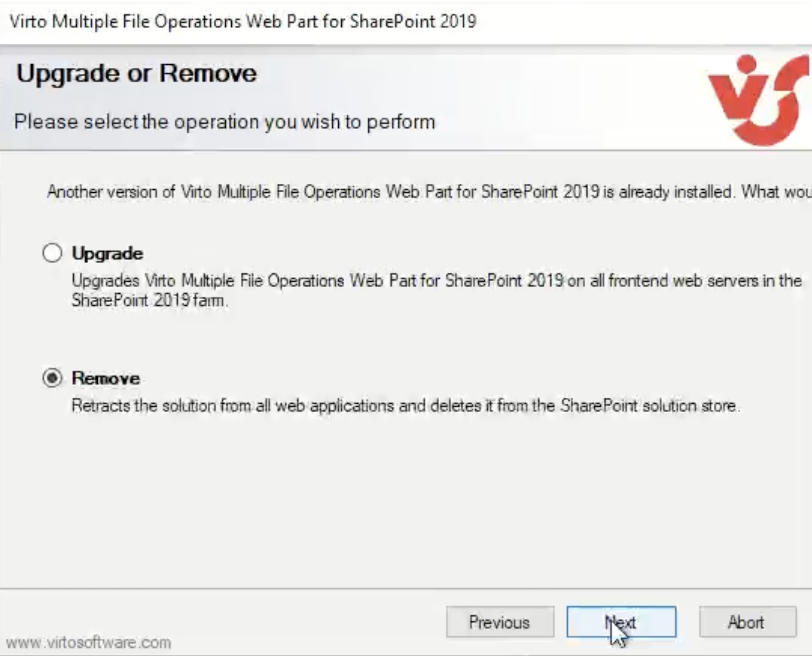
Select the “Remove” checkbox and click “Next.”

Setup wizard with the Remove checkbox selected to uninstall Virto Multiple File Operations

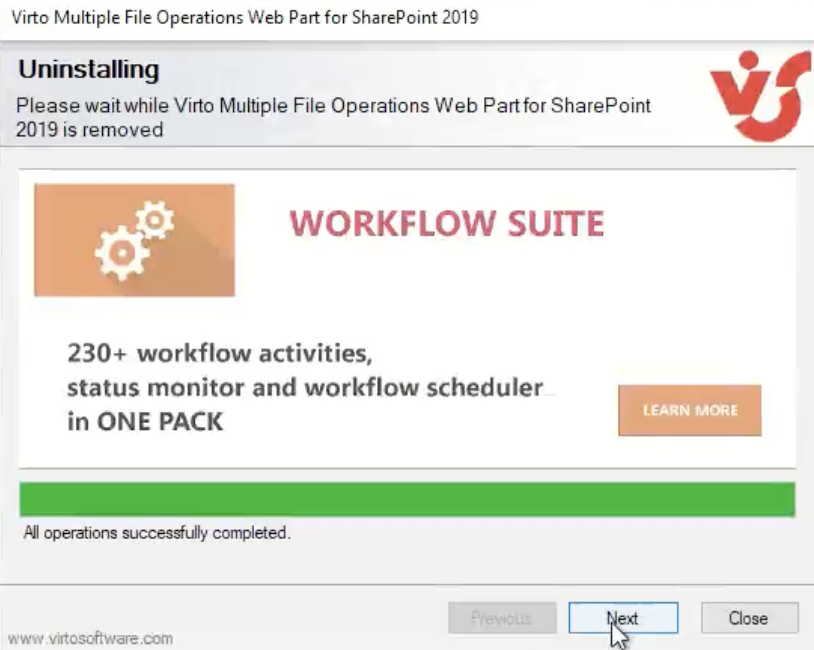
Wait for the product to uninstall.

Setup wizard showing the uninstall in progress for Virto Multiple File Operations

Click “Next“.

Click “Next” once again.

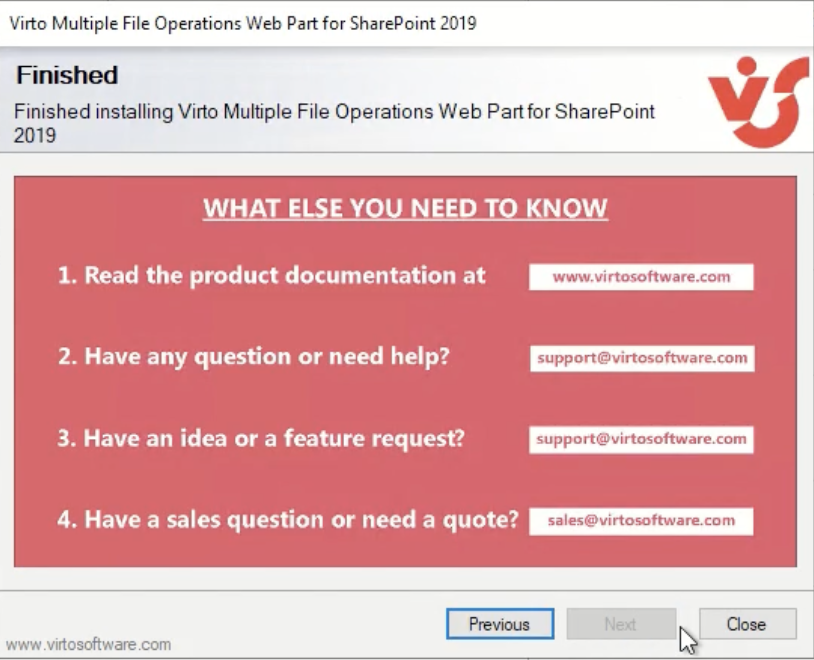
Setup wizard final screen with the Close button to finish uninstalling the web part

Click “Close” to finish the uninstalling.

Updated on October 20, 2026